



 60% OFF

QR codes are a common way to communicate information, and their use is growing. You may have seen them on menus, flyers, business cards, and invitations. But do you know how to scan a QR code?
This article will explain how to scan a QR code easily and quickly access information on various devices.
Part 1. How to scan a QR code on iPhone?
Scanning a QR code on your iPhone is easy. Simply open the Camera app, point your camera at the QR code you want to scan, and then tap to collect the QR code address that appears on the screen. But first, you need to enable QR code scanning on your iPhone.
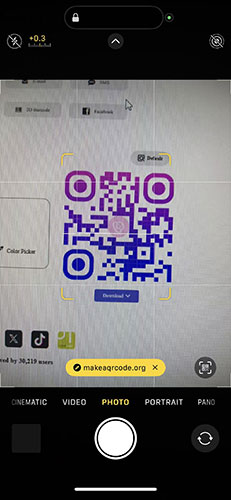
To scan a QR code on your iPhone, follow these steps:
Step 1. Go to the Settings app and tap Camera.
Step 2. Turn on QR code scanning and return to the Camera app.
Step 3. Point your iPhone camera at the QR code and tap the yellow link that appears. This will successfully scan the QR code and redirect you to the page specified by the QR code.
Part 2. How to scan a QR code on Android?
Scanning a QR code on Android is just like scanning a QR code on an iPhone. To successfully scan a QR code on Android, you first need to make sure your Android's camera app supports QR code scanning.
Here are the detailed steps to show you how to scan a QR code on Android:
Step 1. Access the Camera app on Android.
Step 2. Tap the Settings option in the top-left corner (usually in the top-left corner, if you can't find it, you can enable QR code scanning directly in the Settings app). Then, enable QR code scanning.
Step 3. Return to the camera app's photo capture interface and point the camera at the QR code.
Step 4. After a successful qr code scan, the result will pop up on the screen. Tap the scan result to quickly jump to the QR code results page.
Part 3. How to scan QR code on computer Windows?
When it comes to how to scan a QR code, mobile phones are often the first device that comes to mind. However, computers are also a very convenient tool for scanning QR codes. Windows come with built-in camera software, here is the way how to scan QR code on computer Windows easily.
Step 1. Access the camera software on Windows. You can search for Camera in the Windows search box.
Step 2. Click the down arrow on the right. This will bring up the Camera menu. Then, click QR Code Mode.
Step 3. Aim your computer's camera at the QR code, making sure it's clear and centered on the screen.
Step 4. After a few seconds, the QR code scan results will appear at the bottom of the screen. Click the scan result to proceed.
How to scan a QR code on Windows is very simple. Follow the steps above to successfully scan a QR code. However, to successfully scan a QR code on Windows, your Windows device must have a Camera app (most computers have one built in).
Part 4. How to scan qr code on Mac?
Unlike Windows, Mac doesn't support QR code scanning, so you'll need to use an online QR code scanner. You can search for QR code scanner in Chrome and choose the best one for your needs.
We'll use webqr.com as an example. Below are detailed steps on how to scan QR code on Mac easily.
Step 1. Visit https://webqr.com and allow the website to access your Mac's camera.
Step 2. Then, point your camera at the QR code, making sure it's centered on the screen and clearly visible.
Step 3. After a few seconds, you'll receive the scanned QR code and be automatically redirected to the results page.
Part 5. FAQs
Question 1. What is the best free qr code scanner?
There are many free QR code scanners available online. The best one for your needs is the one that best meets your needs. You can try several, but it's best to use one from a secure source.
Question 2. What is qr code scanner?
A QR code scanner is a tool specifically designed to scan QR code, such as apps, programs, or online tools. It works by reading and decoding the information contained in the QR code pattern and presenting it to the person scanning it.
Question 3. How to scan qr code online?
There are 2 different ways to scan a QR code online: one is to upload an image of the QR code and have an online QR code scanner identify the information within. The other is to hold the QR code up to your camera and have your device read the information contained within.
Question 4. What does qr code not scanning mean?
QR code not scanning means that the QR code you scanned is not scannable. Common reasons include: the QR code is severely damaged, making the information unrecognizable. Other possible causes include unclear qr code, incorrect dimensions, or poor lighting.
Question 5. How to make a qr code scannable?
Use MAKEAQRCODE Generator to quickly generate scannable QR codes online. You can create over 10 types of scannable static and dynamic QR codes in just 3 steps.
- · Support for multiple QR code types
- · Highly customizable QR codes with easy preview switching
- · Quickly generate high-quality QR codes
- · Extensive templates for diverse application scenarios

Part 6. Conclusion
In short, now you have a good understanding of how to scan a QR code on different devices. In addition to scanning QR codes, we also strongly recommend that you create scannable QR codes with MAKEAQRCODE Generator to facilitate your daily information dissemination and even QR code scanning data monitoring.
Register Now to get up to 60% OFF
Quickly generate QR code with multiple types, styles, and templates





 Dynamic QR codes — edit the link anytime